In a previous guide, I detailed the steps needed to create a Konami ID. In this guide, I’m going to show you how to display Japanese text correctly in Diorama Studio, Konami’s fantastic virtual action figure and diorama software, when using the Japanese program on a non-Japanese edition of Windows XP.
I must emphasise that this is entirely optional. It isn’t necessary to do this in order to get the program to run but it may make it easier for you to navigate through the program.
I must also point out changing the language settings on your Windows XP system may cause some non-Japanese programs to behave oddly and you might even lose some functionality in some programs. I therefore strongly recommend switching back to your original language settings once you’re done using Diorama Studio.
There are a couple of good guides out there that show you how to display Japanese text correctly in Japanese programs on a non-Japanese Windows XP system. However, if you’re interested only in displaying Japanese text correctly in Diorama Studio, there are a couple of steps in those guides you can omit and moreover, there is one step that is omitted in those guides.
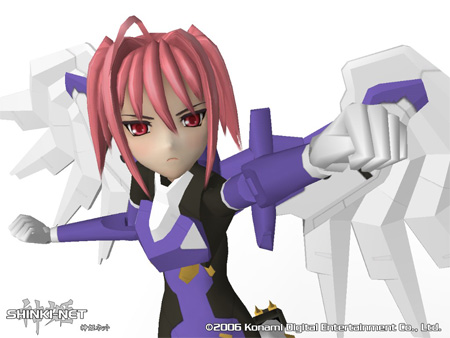
Diorama Studio is part of the ShinkiNET suite of programs which include the ShinkiNET Launcher and Battle Rondo, the Busou Shinki online game. You cannot directly launch the Diorama Studio executable and you will have to go through the ShinkiNET Launcher to do so.
I mention this because displaying Japanese text correctly in Diorama Studio requires different steps compared to displaying Japanese text correctly in the ShinkiNET Launcher.
Before we begin, I’d just like to remind you that I’m not a Windows XP expert and I’m not tech support. I should not be held accountable for problems that may crop up. That said, I have successfully configured my system and I would like to share with you how I did it.