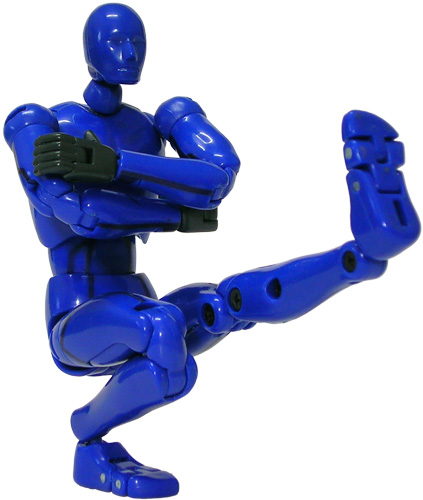
A photo of Takara Tomy’s Action Hero Pro figure in a Russian dance pose. I’d be more specific but my Google powers have deserted me.
In the wild, mouse at the ready, hunting down links
Posted in Pix, Strike a pose, Toys.
Comments Off on Strike a pose 4/52
– Thursday, July 5, 2007
Optimus Prime: activist and conspiracy buff.
I love the signs.
PSP Peep Guard Filter.
“To help commuters with their daily struggle, Hori releases the Peep Filter Portable which blunts the visibility of the PSP screen so that neighbors can’t discern Debbie Doing Dallas on your versatile little portable.” If you can’t survive without porn on your daily commute, I would suggest privacy isn’t your biggest concern.
Posted in Web.
Comments Off on Elsewhere on the web
– Wednesday, July 4, 2007
In previous Diorama Studio Model Editor guides, you learnt how to select a CG model, select a starting pose and customise the CG model with parts.
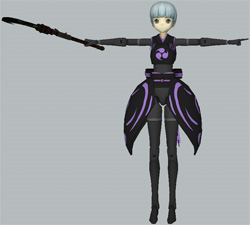
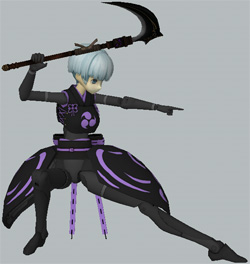
In this guide, you’ll learn how to pose the CG model. We’ll go from this humdrum default pose:
Posted in Diorama Studio, Software.
Comments Off on Diorama Studio: Model Editor guide part 3
– Wednesday, July 4, 2007
Y’know, for the kids.
It’s really nice to see the sheer delight of a young TransFan regardless of my opinion of the movie designs.
Transformers KISS Megatron.
Well, okay, not really. And thank goodness for that.
Guild Wars: Eye of the North press release.
Release date: 31 August.
A failed WOW seduction.
“An Australian woman has been arrested in the US for trying to lure her young internet boyfriend to Australia … The university student is said to have begun an intense relationship with the boy, then 16, a year ago through medieval-themed online role-playing game World of Warcraft.” Single best comment.
Posted in Web.
Comments Off on Elsewhere on the web
– Tuesday, July 3, 2007
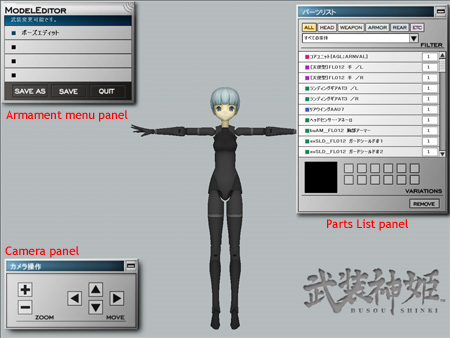
In part 1 of the Diorama Studio Model Editor guide, I showed you how to select a CG model and select a preset starting pose. I ended the guide at the Model Editor armament screen:
Posted in Diorama Studio, Software.
Comments Off on Diorama Studio: Model Editor guide part 2
– Tuesday, July 3, 2007
